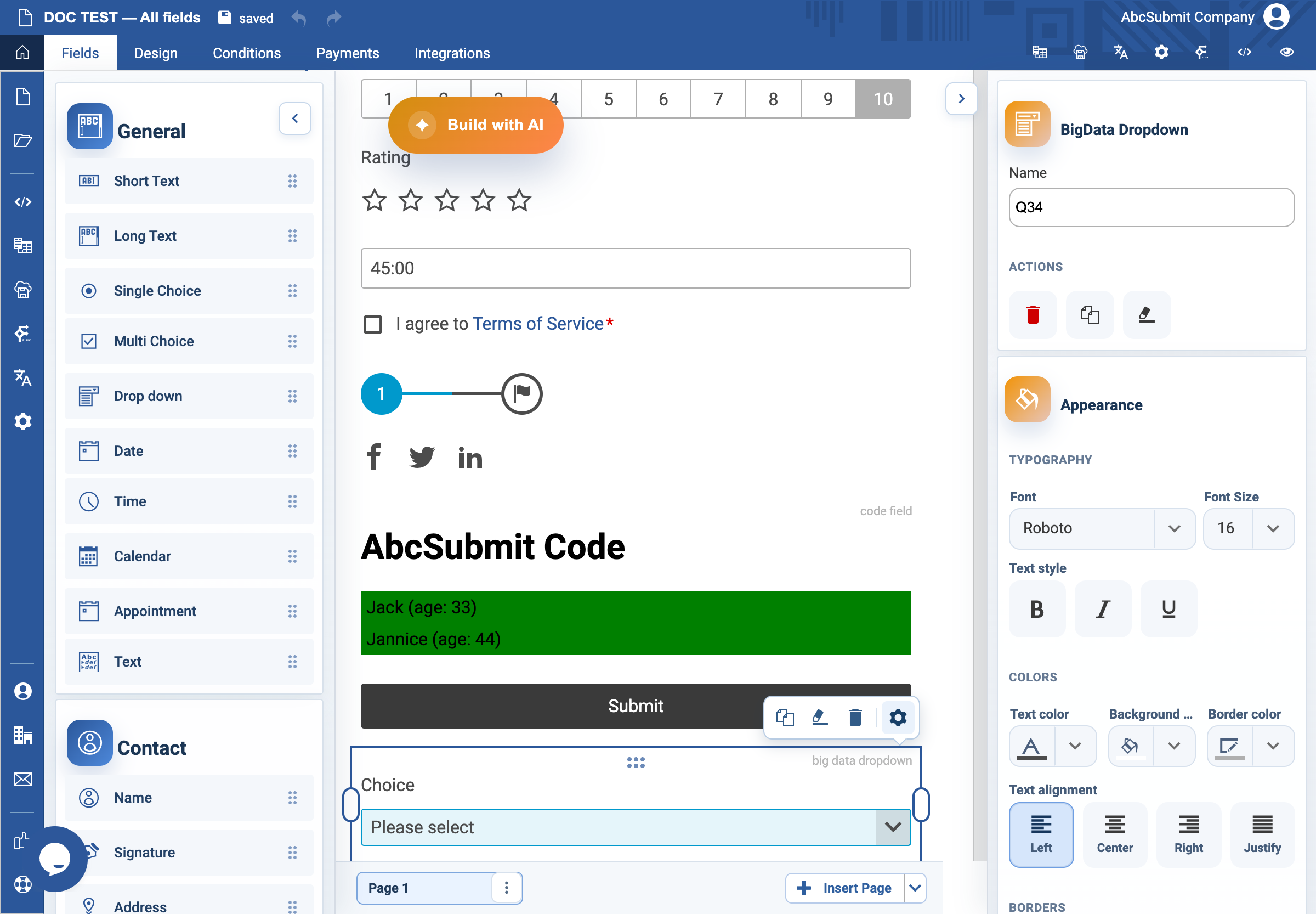
Appearance
BigData Dropdown field
Use BigData Dropdown to load choices from an approved Big Data Collection.
Example: select a supplier
- Create and validate the required Big Data Collection before configuring the form field.
- Select Fields > Other > BigData Dropdown.
- Open Edit and set First choice text to
Select a supplier. - Select Configure BigData query.
- Choose the approved Collection, then choose the Collection field whose values respondents may see.
- Configure the lookup/filter query so it returns only permitted records. Save the configuration.
- Preview with expected and unexpected filter values. Confirm the drop-down loads the right choices and never exposes unrelated records.
Expected result
The field displays the selected collection values only when its collection, field, query, and public endpoint are configured. Treat every exposed collection value as public to the respondent.
Collection and permission limitations
Configure BigData query lists only collections returned for the logged-in account. Choose a collection first; the field list is then rebuilt from that collection’s schema. Only fields of type String can be selected for the dropdown, so numeric, Boolean, array, and internal identifier fields are disabled. The filter is sent as the lookup query and the editor derives a public endpoint from the selected collection.
The collection must be readable by the form at runtime. A collection visible to the editor but later made private, deleted, renamed, or permission-restricted can leave the dropdown empty or unable to fetch choices. Do not use a public endpoint for confidential columns; expose only a deliberately published, least-privilege collection and test anonymous form access separately from editor access.