
Appearance
Review form responses
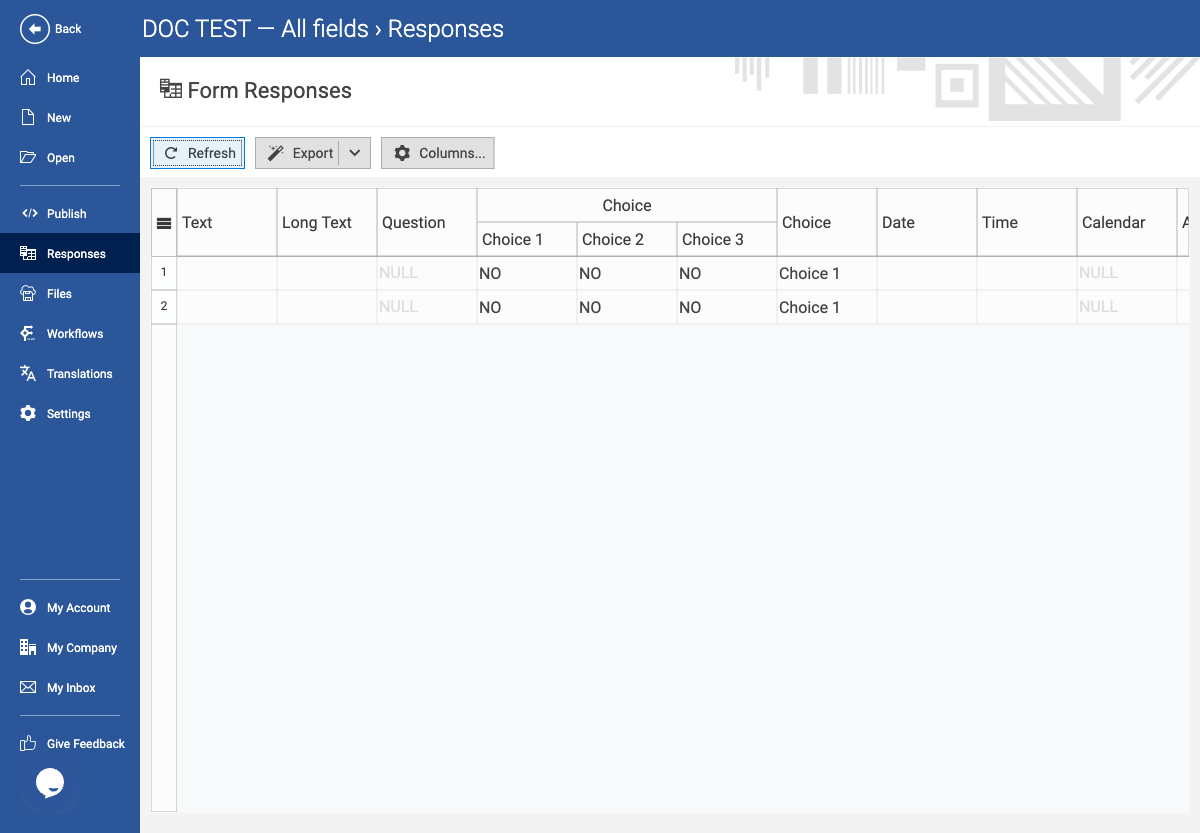
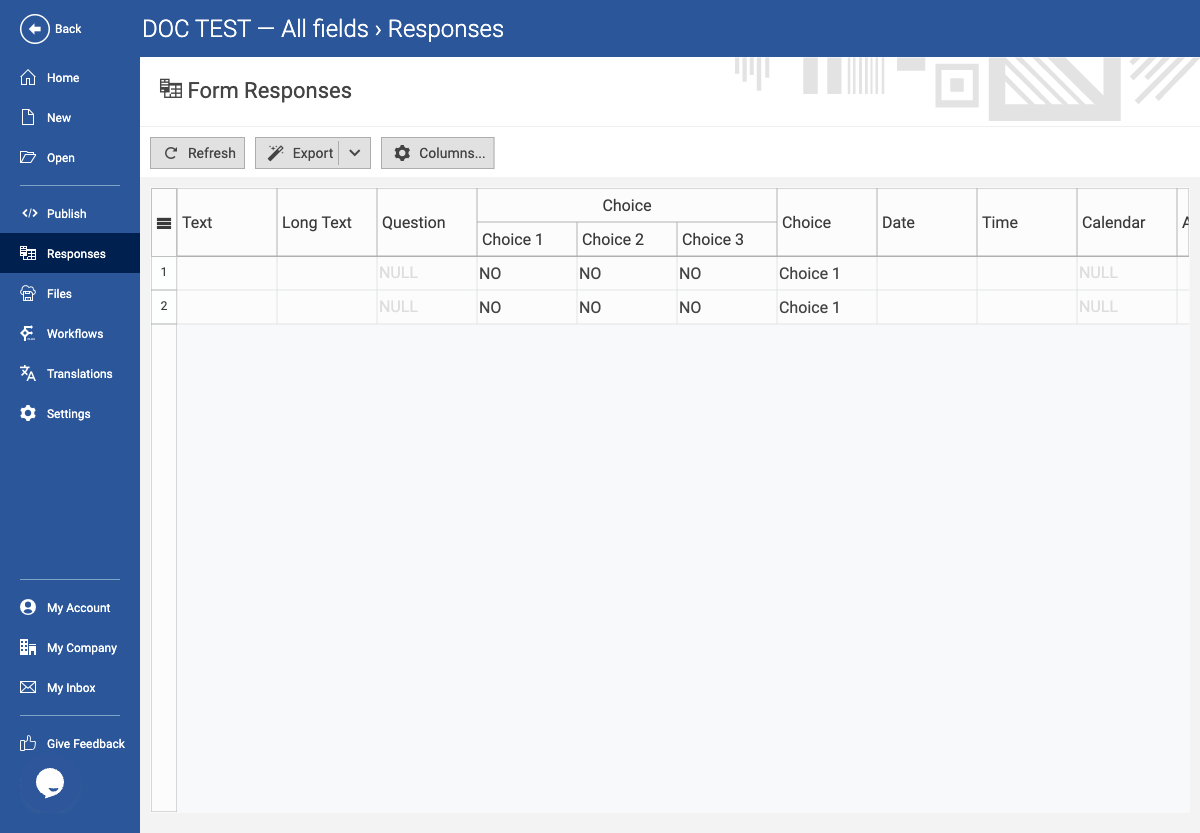
Use Responses to inspect results submitted to the current form.
Toolbar and table controls
- Refresh reloads the current form’s response collection.
- Export offers Microsoft Excel (
.xls), Adobe PDF, CSV, and JSON. Export is an outbound data action; confirm permission and destination before using it. - Columns... opens Configure columns. Apply persists the choices for this form in the browser; Cancel discards changes. System columns include ID, Date, IP, Last updated, Partial, Payment Status, Revision, User Agent, Country, UTM Source, Referrer, Approval Status, and Reference ID. Form fields are available as data columns as well.
- Edit is shown only when exactly one row is selected.
- Workflows and Delete are selection-dependent. Deletion is irreversible; use it only when you have confirmed the selected responses are no longer needed.
Click a column header to sort the grid by that column; date and numeric columns use their underlying values. Click a row to select it. Use the grid’s multi-selection gesture (Ctrl/Cmd-click or Shift-click, depending on platform) for batch workflow actions. The selected row is the input to Edit; multiple selected rows are eligible for batch workflow operations, not Edit.
Example: verify a test submission
- Open the form containing your test submission and select Responses.
- Confirm that you have read or write permission for form responses. If access is denied, ask the form owner or administrator; do not attempt to bypass the restriction.
- Use the response grid to locate the non-sensitive test submission by its known test value or submission date.
- Review the field columns and relevant system information, such as submission date, payment status, reference ID, approval status, or partial-state information, only as needed.
- Open the response only when necessary to verify the expected result.
- Record the outcome without copying personal or customer data into notes or messages.
Expected result
You can confirm the intended form behaviour from a dedicated test submission while preserving respondent privacy. The response grid can include form fields and system columns such as ID, payment status, date, IP, user agent, revision, partial status, last update time, country, UTM source, referrer, approval status, and reference ID.
With zero responses, the grid displays 0 and Waiting for form responses; sorting, row selection, editing, and deletion have no targets. Export may still open its format menu, but should not be treated as evidence of a non-empty export. With one row selected, Edit opens the response in a new tab; Workflows applies batch workflow actions and Delete is destructive. The grid is canvas-rendered, so select a row by clicking its visible row area. Use Columns... > Apply to persist system-column visibility for this form.